DW Spectrum User Manual
To add item(s) to the current layout, choose from one of the following:
•Double-click on the item in the Resource Panel
•Right-click in the Resource Panel to open the context menu and select Open
•Drag-and-drop a device, web page or local file from the Resource Panel into layout
NOTE: that you can Select and add multiple items from the Resource Panel using the CTRL or Shift keys.
•Open Local file(s) or Folder – will be added to the current layout.
New items will scale to occupy the available space in layout. DW Spectrum adjusts the aspect ratio of Viewing Grid cells according to the aspect ratio of the items in layout to maximize use of display space. See "Cell Aspect Ratio".
NOTE: Viewer-level User and Groups with similar limitations on their authority can add items but not save (update) the shared layout, they can also make their own layout from available cameras.
To Open Items Directly into a New Tab
•Right-click on the desired item(s) in the Resource Panel and select Open in New Tab in the context menu.
•Drag-and-drop the selected item(s) from the Resource Panel and onto the Navigation Panel header.
NOTE: It may be difficult to locate and add each device manually. You can use the search pane to help locate items (see "Searching and Filtering in DW Spectrum").
To Configure a Layout Using Search
1.Create a new layout (see "Creating and Sharing Layouts").
2.Enter keywords into the Search box. The search results will appear on the Resource Panel automatically.
3.By adding or deleting keywords from the search box, the items on the Resource Panel will vary.
4.Save the configured Layout.
Additionally, it is possible to add devices from different Sites you have access to. Some limitations apply:
•The Devices must be connected to Sites that share a common Cloud Account or Organization.
•Users need permissions to view Cameras that are placed on the Layout.
To add a device from a different Site:
1.Find the desired Site in the Resource Panel.
2.Expand the desired Site, choose the device(s) you want to add and add them to the current layout as described above.
Also items from other Sites may already be in other Cross-Site Layouts in the Resource Panel. In this case, once add them to the current Layout, it will automatically turn into a Cross-Site one.
Once such layout is saved, a few restrictions will apply:
•It can only be displayed in the Desktop Client (not Mobile/Web Admins).
•Cloud Users can set up and save such layouts but cannot share them to other users.
Cross Site layouts cannot be used with VideoWall, Showreels or automated with Event Rules (the "Open Layout" action).
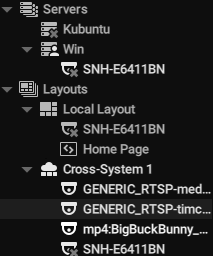
Cross-Site Layouts are displayed in the Resource Panel as follows: