DW Spectrum User Manual
DW Spectrum Server certificate validation occurs on the communication between DW Spectrum Server, DW Spectrum Clients (Desktop Client and Mobile Client), and DW Cloud to enhance the security of DW Spectrum by ensuring you are connecting to a trusted location.
While the Client connects to a Site, the Site provides the public keys from every Server to the Desktop Client for validation. No matter which level is configured, there will be no warning message displayed at all when you connect to a Site having a valid (public) certificate with a matching hostname.
NOTE: A valid certificate must be issued by a public Certification Authority (CA) that contains the completed information of the certificate chain. A public certificate without a certificate chain will be considered invalid in DW Spectrum. See "Obtaining and Installing an Authorized Certificate" for details. Trusted Man In The Middle certificates are trusted on the Desktop Client side.
For other types of certificates, the behavior will depend on the Client’s validation level:
•Disabled – The Client will skip the validation process and connect to the Site directly. The User will not see a warning message. However, it is still NOT recommended to turn the validation off since certificate validation is recommended as a part of the security hardening process of any Site.
•Recommended (default) – Allows users to connect to the Sites with any certificate, but may require the user’s confirmation. You may still see the warning message in the following situations:
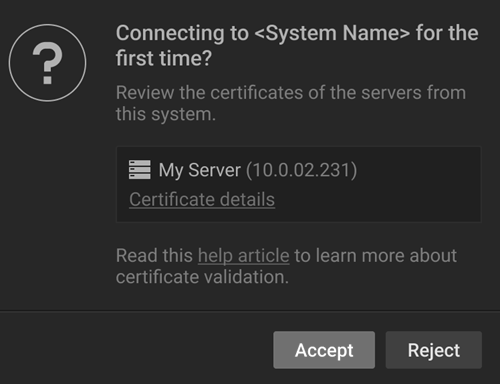
oConnected to an UNKNOWN Sites – When a Client attempts to connect to a Site for the first time, that means the Client has no information about the servers’ certificates before. When the Site provides the certificate(s) that is custom/self-signed, or public certificate without chain information, a “Connecting to Server for the first time?” prompt may appear stating that the SSL certificate could not be verified automatically. Once the Client approves this connection, the certificate will be stored at the Client’s end. It is expected that no warning message will pop up again for any further connections until the certificate expires/changes.
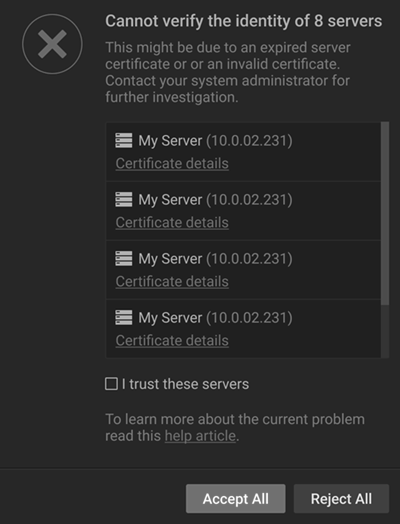
oConnected to a KNOWN Site – When a User attempts to use the Client to connect a known Site with a certificate(s) that cannot be successfully verified. For example, mismatched with the Client's pinned certificate, expired certificate, etc. Then the Desktop Client will display the warning message: “Cannot verify the identity of # Server ”.
The User is prompted to take further action and check the certificate's problems. The User can check the I trust this/these Servers checkbox and then click Connect Anyway to connect to the Servers. This message will be seen every time the User attempts to connect to the Site until the issue with the certificate has been fixed.
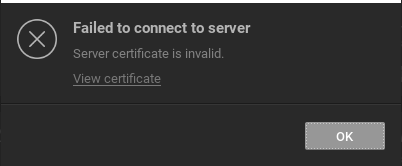
oStrict – With this mode, the servers that use the default self-signed certificates will also be rejected by the Client. It forces the User to connect to Servers with only a valid (public) certificate and correct hostname. The User will see the warning message below when they attempt to connect to the Site with an invalid certificate or a mismatched hostname.
How to Change the Certificate's Validation Level
To change the validation level in the Desktop Client:
1.Open Main Menu > Local Settings > Advanced tab.
2.Open the Server certificate validation drop-down and select a validation level: Disabled, Recommended, or Strict.
3.Apply changes.
NOTE: The Server certificate validation level can also be modified in the Mobile Client.
How to Check the Certificate's Details
To check the Server's SSL certificate validity and information:
Desktop Client
1.Open Server Settings > General.
NOTE: Any available pinned/custom certificate will be listed here.
2.Click the certificate to view its details.
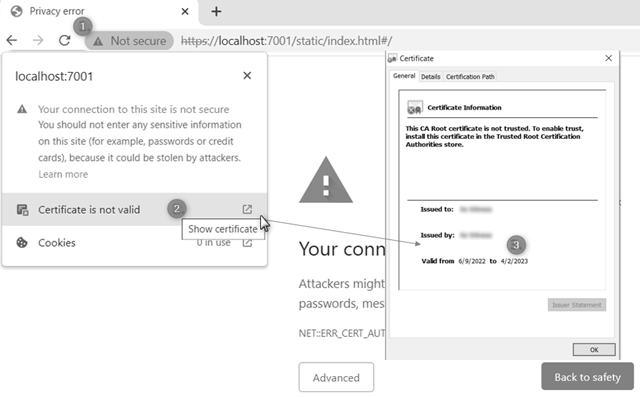
1.Visit the Web and click the Not secure indicator in the address bar.
2.Click on the certificate’s status to open its details
3.Review the certificate's information, such as issuer and expiration date.
How to Renew the Expired Certificate
•Self-signed Certificates from DW Spectrum
Restart the Server to renew its certificate and try again.
•Public Certificates / Other Self-signed Certificates
Contact your administrator to renew the Server certificate.
