DW Spectrum User Manual
Each server can use an unlimited number of local, non-local (network), and cloud storage solutions. The server will automatically balance space and consumption across drives when more than one storage location is available (see "Background: Archive Distribution and Retention").
NOTE: USB storage is not enabled by default. DW Spectrum will show a warning when a user is attempting to record to a USB device; USB devices can only be used for archive data.
Each server writes to its own sub-directory, using a unique GUID in the storage, and every storage location (devices or folder) has a configurable read-write policy.
Storage Considerations:
•Each local hard disk partition is considered a possible, least preferred, storage location.
•It is recommended to NOT use a primary drive for any archive, index, or analytical data storage – Use an independent partition on a separate physical drive for best results.
•A local drive with a single partition containing an operating environment can be used for recording.
•DW Spectrum does not allow recording to drives that are less than 10% the size of the largest drive in the system.
•10% of available space is reserved on each storage location.
•Storage locations must be detected by the operating environment and be available to DW Spectrum applications.
•Storage device activity levels (read, write, scan, clear) are directly related to storage availability, as less capacity generates more frequent reuse of a smaller space.
•Cloud storage can only be used as a backup location.
•When local storage is added to a server, and an extended partition is created with 5 times the storage capacity than the primary storage, or if the total sum of available (non-primary) storage capacity is 5 times that of the primary storage, the primary partition will be disabled for recording and DW Spectrum will record data to the extended partition(s).
•If a primary partition is used, the "Local storage is used for analytic and motion data (Site)" event will be triggered.
•Example storage scenario:
•Camera A in Site A records in Folder A on a NAS device,
•Camera B in Site B records in the Folder B on the same NAS.
The Read-Write policy for this NAS must be Shared or Exclusive. After a manual re-index of the Archive in Site A, Camera B will shown in Site A and similarly, Camera A will be shown in Site B. After that all archive chunks will be updated automatically.
NOTE: Encrypted archives function the same way as described above.
Data Types Stored:
•Video Archive: The recorded audio-video streams provided by a device or camera.
•Index Data: Motion, Bookmarks, and proprietary metadata resides at the same drive as the corresponding archive.
•Analytical Data: By default, the largest, local, non-primary drive is used for analytical data storage (see "Configuring Analytical Storage").
Read-Write Policies:
1.Exclusive: The server can read all folders, erase old data from all folders, and write only to its own folder.
oThis is default setting for all local storage.
2.Shared: The server can read all folders, but can only write or erase old data within it's own folder.
o This setting can not be applied to local storage.
3.Isolated: The server can only read, write, or erase data in its own folder.
oThis is the default option for all non-local storage locations.
NOTES:
a.Local storage cannot use the Shared policy.
b.Cloud storage can only be configured with the Isolated policy.
c.The read-write policy for reserved storage makes the location available for editing.
d.A warning message and alert icon is displayed when non-local storage has conflicting read-write policies applied by different servers in the Site.
To Configure Server Storage
1.Do one of the following:
•Desktop Client: Open the Server context menu and go to Server Settings > Storage Management tab.
•Web Admin / Cloud Portal: Open Settings > Servers and select a server.
DW Spectrum will displays all known and discovered resources available as local storage.
2.Use the drop-down menu to select the purpose and policy for each storage location.
3.Use the switch to enable or disable each storage location.
4.Example:
a.The server has three local partitions (C:, D:, E:).
b.Disk C (operating system) is currently disabled.
c.Disk D and Disk E are backup partitions with an exclusive policy.
d.The NAS is used as main storage using the shared policy.
e.Cloud storage is an isolated backup location (shown as disabled).
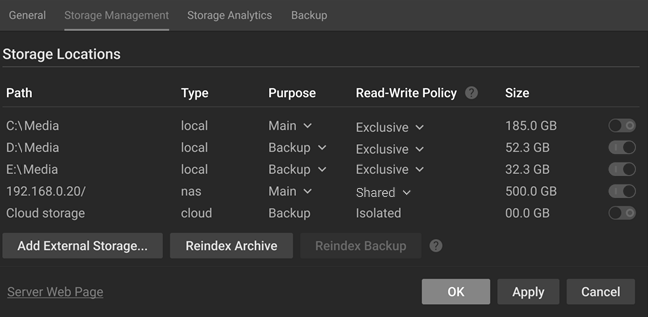
NOTES:
a.There must always be at least one Main storage location. Once a main storage location is configured, any other storage location you may have can be set as Main or Backup.
b.At least one drive must be defined as Backup for archive backup to be possible.
c.DW Spectrum will check all storage locations for validity and confirm the ability to write to each. If a drive is not available or has insufficient space, a warning will be displayed.
d.Displayed statistics will refresh periodically and may have a small lag – a manual Refresh button provided in the header menu.
e.Some cameras record directly to their own internal storage, DW Spectrum must periodically download archive from the camera's internal storage to DW Spectrum servers. See "Remote Archive Synchronization".
f.Recycling bins and similar concepts (Trashboxes, trash bins) must be disabled as a part of the configuration step. DW Spectrum Server will start overwriting data when the "Reserved Space" limit is reached. To do that, it sends standard SMB-delete requests to the NAS drive. NAS will put files in the bin if the recycle bin is enabled. The DW Spectrum Server will not get the necessary space, sending new delete commands instead. Eventually, it will end up with a full drive and the inability to record data until the recycle bin is emptied.
To Add a Network Storage
External storage must use one of the supported storage protocols: CIFS, SMB, NFS, or iSCSI.
NOTE: Make sure NAS is available and accessible through the network on which the computer server is installed.
1.Do one of the following:
•Desktop Client: Open the server's context menu and go to Server Settings > Storage Management tab.
•Web Admin / Cloud Portal: Open Settings > Servers and select a server.
2.Click Add External Storage.
3.Choose the desired option from the Protocol menu, and enter the storage path (URL), Login, and Password for the external storage device.
4.Click OK to accept the entries and add the new device to the list of storage locations.
5.Use the button at the end of the row to toggle it on or off.
To Find Archive on a Storage Device
The storage structure on a partition is as follows:
•<drive>/DW Spectrum Media/$GUID/$Resolution/$ID/$YYYY/$MM/$DD/$HH
where:
•$GUID – Unique identifier for the server
•$Resolution – can be hi_quality (high resolution streams) or low_quality (low resolution streams)
•$ID – if reported, the MAC address of the recorded device, otherwise the Camera ID
•$YYYY – year recorded
•$MM – month recorded
•$DD – day recorded
•$HH – hour recorded
