DW Spectrum User Manual
The information provided on this page is specific to the Object Lookup list type.
Create an Object List:
1.Open Main Menu > Lists Management,
2.Atop the Lookup Lists dialog, select the New List... button,
3.Enter a name for the new list.
4.Select the List Type for the new list.
5.Enter a name for the list column(s) in a generic list, or
Select a predefined name of the column(s) in an object list.
6.Proceed according to the Configure a Lookup List section.
Configure or Delete a Lookup List:
1.Open Main Menu > Lists Management.
2.Atop the Lookup Lists dialog select an existing list using the pull-down menu.
3.Click on the Settings icon to open the List Settings dialog containing the following options:
a.Select the current list name to edit the list name.
b.Click the Delete icon to remove the entire list and all data.
c.Use the checkbox to add or remove an attribute column from the Lookup List.
NOTE: All values in the (attribute) column are lost when a column is removed from a list.
Define the Values in a Lookup List:
1.Open Main Menu > Lists Management.
2.Atop the Lookup Lists dialog select an existing list using the pull-down menu.
3.To add a new entry:
a.Click the +Add button to add a new value to the list.
b.The Add Entry dialog box will open to configure the new list entry.
c.Attributes with a defined list of values will present a pull-down menu of available choices.
d.Attributes without a defined list of values will be populated with Any <attribute> text – click on the text to enter a custom value.
NOTE: An entry can be added to an object list by right clicking on the card in objects tab. The list must be of the same object type, only those attributes will be saved, for which a list has columns, any not detected attributes will be treated as empty = "Any". The entry won't be added, if the resulting entry will have all attribute values = "any". Values
4.To edit an existing entry:
a.With the list contents displayed as a table, click on the attribute data to change.
b.Columns constrained to a predefined list will present a pull-down menu to value selection.
c.Click on Any <attribute> text to open the free form entry mode and provide a value.
d.Click the Apply button to save and deploy list changes while keeping the dialog open.
e.Click OK to deploy list changes and close the dialog.
5.To delete values, first select the values to remove with the selection boxes, and then click the Delete button.
Import an Object Lookup List:
1.Open Main Menu > Lists Management.
2.top the Lookup Lists dialog, use the pull-down menu to select an existing (object) list where the imported data will be placed.
3.Click the icon labeled Import that is between the +Add button and the icon labeled Export.
4.Browse to and select the (list) file to be imported and click the Open button.
a.The file to import must have same number of columns as the Object list
b.While any basic alphanumeric character can be a column separator, each line entry must end with a line feed / carriage return.
5.DW Spectrum will attempt to parse the list and generate a preview (Import Options dialog) using the following defaults:
a.Data contains headers checkbox is selected.
b.Separator is a comma for .CSV files and the TAB character for .TSV files.
2.Inspect the import preview and make any changes to the data mapping:
a.The parsed data is previewed as a table within the Import Options dialog.
b.Use the pull-down menus in the Preview headings to correctly map attributes to data columns within the file to import.
c.Each object attribute can only be used once – aligning an attribute to a different data column will set the previous heading to Select attribute
d.The Import button will remain disabled until all headings are either mapped to data, or set as Do not import.
e.A manual mapping dialog is presented when the data parsed from the file to import does not match the available object attributes.
EXAMPLE: (with mixed headers and data)
•The attribute type for the left-most column is size while the data contains color values.
•The attribute type for the forth column from the left is color while the data contains size values.
•Remap the headings by using the pull-down menus.
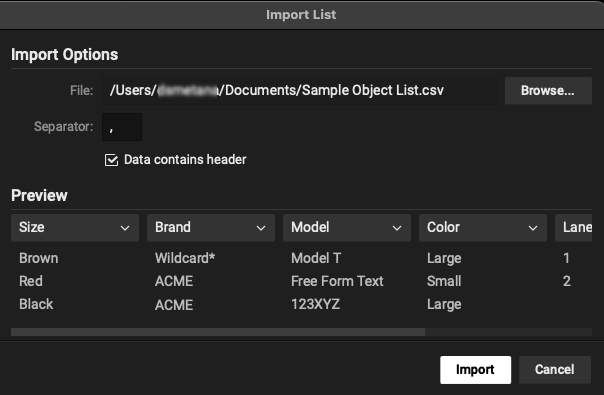
NOTE: Within object lists, attributes can be manually map to columns if there's an enumeration with fixed set of values, example:
If available color attributes are [brown, red, black], and an imported data "magenta", the user must map this value (magenta = red).
3.Click the Import button when all data mapping is set.
4.Imported data will be appended to existing data.
a.Erroneously imported data and duplicates must be manually removed from the list.
b.Values in the revised list, after import, can be edited before being committed.
5.Click the Apply button to fully commit the list changes and the OK button to close the import dialog.
Export a Lookup List:
1.Open Main Menu > Lists Management,
2.Atop the Lookup Lists dialog select an existing list using the pull-down menu.
3.Click the Export button.
4.Browse to the location where the file will be exported.
5.Confirm the file-type and file name the list will be exported to.
6.Click Save to export the Lookup List.
7.The export confirmation dialog includes an option to open the 'save to' location.
