DW Spectrum User Manual
Key Concepts
•Region of Interest (ROI) is a feature often found in cameras with built-in video analysis services.
•ROIs represents an area or line placed over the camera image is part of a defined event or detection alarm.
•A single camera can have multiple ROI and often each ROI has its own settings for sensitivity, time, direction of travel, etc.
•For many cameras the DW Spectrum Desktop Client is able to define ROIs and configure detection settings.
•Only one camera stream can be used with the ROI functionality.
•The Analytics Event rule can be used to trigger an Action based on data provided by an integration.
NOTE: This section describes the basic ROI types available through the Stub integration. While these examples are similar to many integrations, each integration vendor defines the tools and settings available through the Desktop Client and directly through software embedded in the camera or device.
Common ROI Types Available in the Stub Integration
The Stub ROI integration provides the following use cases types as examples representing the options available in many integrations.
•The exclusion polygon is an area that will be ignored by any other Stub ROI that overlaps the same area on the camera image.
•Polygons are closed shapes of between three and six points that can be repositioned on the camera image.
•Boxes are four sided shapes created with a click and drag operation. Boxes have the same configuration options as polygons and they can be re-sized and repositioned, but they cannot be rotated and must contain 90 degree angles at each corner.
•Lines are limited to two-points of definition that typically include a direction of travel that is part of the event detection configuration.
•Polylines can contain multiple points and are often used to define an ROI that aligns with a unique physical environment that must be accommodated. A polyline can cross itself, but it will not create a closed shape and cannot be converted into a polygon.
•The Size Constraint function provides a minimum and a maximum bounding box. An object must be between the min and max sizes to trigger a detection event. The min and max bounding boxes do not need to overlap – the minimum box must always be smaller than the maximum box.
Define a Region of Interest
The following outline generally applies to all Stub ROI types while respecting that not all ROI types have the same configuration options.
1.Open the context menu of a supported camera and select > Camera Settings > Integration to open the dialog.
2.Scroll through the available ROI types and locate the ROI type (Boxes, Lines, Polygon, Size) to be defined.
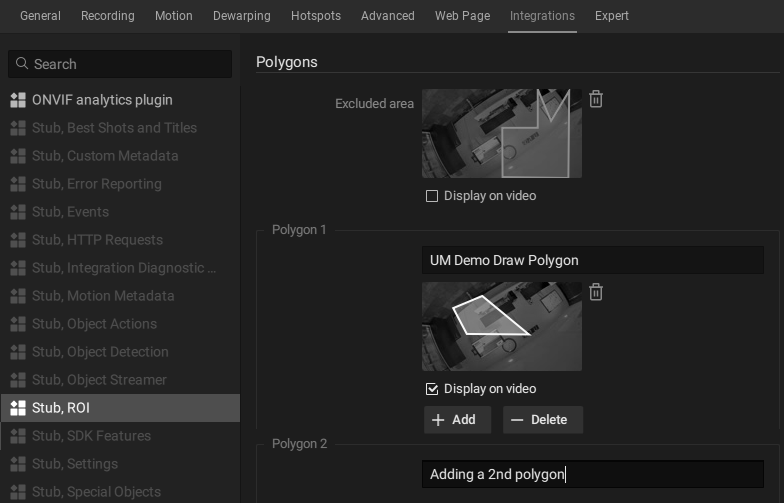
3.Enter an optional caption-label for the ROI to be displayed when the ROI shape is set to be displayed.
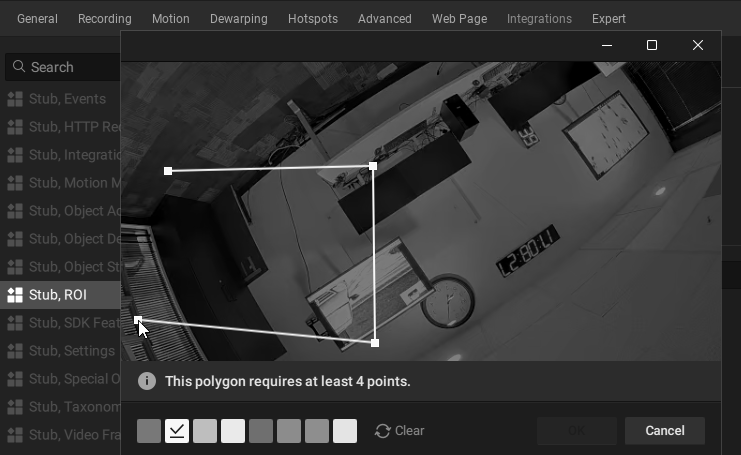
4.Click the empty camera-frame that contains the text "Click to add", or a currently configured ROI snapshot to enter ROI definition mode.
a.Select a color to be applied to the ROI graphics that will be placed over the camera image.
b.Place sequential ROI points to create a line or create and close a polygon – click and drag to create a box or to re-size min-max bounding boxes.
c.Click Clear to erase all points and start over, or click OK to save the ROI and close the definition dialog.
5.Checkbox to select if the ROI shape is displayed on video as an overlay.
6.Set any configuration options for the ROI being defined.
Add Additional Regions of Interest
The following steps apply to analytical models that support multiple ROIs.
1.Open the context menu of the camera containing the ROI and select > Camera Settings > Integration to open the dialog.
2.Locate the ROI to be configured.
3.Use the +Add and -Delete buttons to add or remove additional ROIs.
4.Repeat the steps to Define a Region of Interest described in the previous section.
Delete a Region of Interest
1.Open the context menu of the camera containing the ROI and select > Camera Settings > Integration to open the dialog.
2.Locate the ROI to be deleted.
3.Click on the trash can icon to remove the ROI – this cannot be undone.