DW Spectrum User Manual
Permissions can be configured for Groups (Custom and LDAP), Channel Partners users, and for individual users (local, cloud, organization, and LDAP).
To configure Permission for a Group
1.Open the Group Management dialog by selecting Main Menu > User Management dialog and switching to the Groups tab.
•Optionally refine the list of groups by using the search box, filters, and column sorting options.
2.Click on a Group to open the configuration dialog.
3.Choose the Resources tab to manage Resource Permissions or the Global Permissions tab to manage Global Permissions.
To configure Permission for a User
1.Open the User Management dialog by selecting Main Menu > User Management dialog and switching to the Users tab.
•Optionally refine the list of users by using the search box, filters, and column sorting options.
2.Click on the User name in the list, or select a single checkbox and Click Edit to open User Properties.
3.Choose the Resources tab to manage Resource Permissions or the Global Permissions tab to manage Global Permissions.
Global Permissions
Use the checkboxes to enable or disable the following:
•If Group members are permitted to View the Event Log.
•If Group members are permitted to generate non-camera events.
Resource Permissions
Granting Permissions to Resources is done by selecting the Permission level (view live, archive, manage bookmarks, etc.) a User or Group will have to a Resource. The Resource configuration panel is the same when configuring Users or Groups
•Devices – Cameras, I/O modules, etc.
•Web Pages and Integrations.
•Server Health Monitors.
•Layouts – may include all of the above Resources. Granting permission for a Layout grants access to all Resources placed on the Layout.
•Video Walls – configure Video Walls based on available Resource Permissions.
The following rules are applied when managing Resource Permissions:
•Clicking on the heading row of any Resource (devices, layouts,web pages, etc.) will toggle all the resources in the Permission column.
•Permissions can only be granted, inherited, or not granted, there is no mechanism to block access to a specific Resource.
•Users and Groups inherit the Permissions from every Group they are a member of.
Resource Control Icons – provide permissions to selected resources:
•View Live – Permission to access a live view only.
•Play Audio – Permission to Play Audio received from a device. Applies to both live and archived streams.
•View Archive – Permission to access the archive.
•Export Archive – Permission to export archives.
•View Bookmarks – Permission to browse Bookmark.
•Manage Bookmarks – Permission to View, Create, Edit, or Delete Bookmark.
•User Input – Permission to control PTZ, use Soft Triggers, and 2-way audio.
•Edit Settings – Permission to change the available device options.
NOTE: Selecting a permission will automatically select any other permissions it requires in the permission table.
Permission Status Icons:
•Empty Space – No Permission granted to this Site Resource.
•Checkmark – An explicitly granted (not inherited) Permission to a Resource.
•A Number – The sum of Resources granted per Permission type displayed in row heading.
•Layout – Permission to the Resource is inherited through a Layout granting Permissions.
•Multiple Users – Permissions are inherited from membership in one or more Groups.
NOTES:
•Mouse-hover Permission Status Icon in the panel to view inheritance details.
•Mouse-hover over the Permission grid to see inheritance rules.
Permissions Panel Configuration Example:
The example below illustrates various combinations of Resource Permissions assigned to Users and Groups:
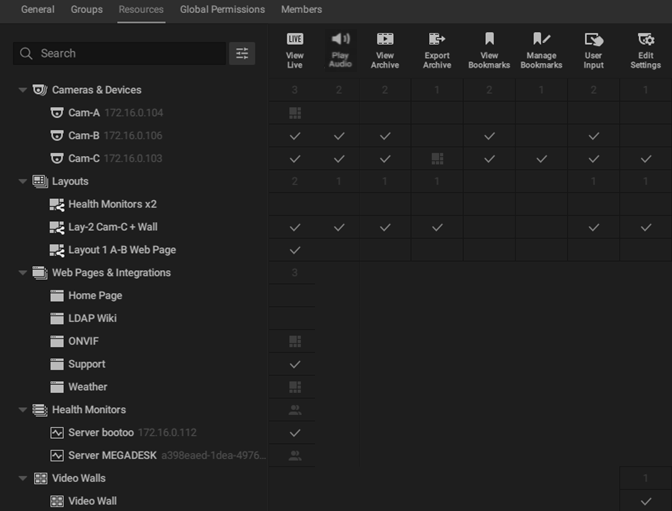
•Cameras & Devices
oCam-A – Live View is inherited from Layout 1 A-B Web Page.
oCam-B – Live View, Play Audio, View Archive, View Bookmarks, and User Input to Cam-B are explicitly granted.
oCam-C – Same as Cam B; Export Archive permission is inherited from Layout Lay-2 Cam-C + Wall with Manage Bookmarks and Edit Settings permission being explicitly granted.
•Layouts
oNo access to Health Monitor x2 Layout.
oLay-2 Cam-C + Wall layout includes all permissions except for View and Manage Bookmarks.
oLayout 1 A-B Web Page is limited to Live View.
•Web Pages & Integrations
oInherited permission to view ONVIF Web Page from Lay-2 Cam-C + Wall.
oExplicit permission to view Support Web Page.
oInherited permission to view Weather Web Page from Layout 1 A-B Web Page.
•Site Health Monitors
oExplicit permission to view for Server bootoo.
oInherited permission to view for Server MEGADESK inherited from SHM Group.
•Video Walls
oExplicit permission to edit Video Wall.
