DW Spectrum User Manual
Key Concepts:
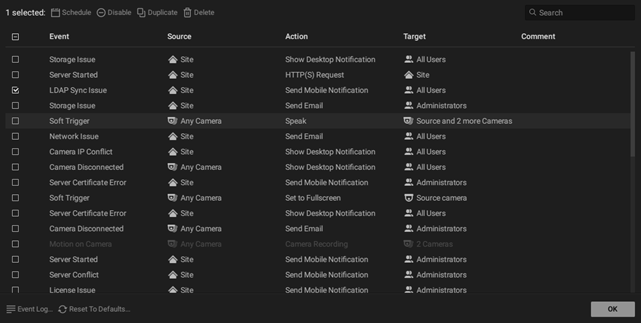
•The Event Rules dialog provides a summary view (event – source – action – target – comment) of all event rules in the Site.
•Available action-icons and relative to the number of existing rules that are selected.
•Contextual icons to perform event rule tasks.
•Disabled rules are shaded and dimmed in the list of current event rules.
•Clicking the Reset to Defaults button will clear all custom event rules and restore the original set of event rules. This action cannot be undone.
•Contents of the search box are applied to all visible columns of data
oSingle character (?) and any after (*) wildcards are supported in the search box.
How to Open the Event Rules List:
Use any of the following methods to open the Event Rules list and view a summary of all event rules.
•Open the main menu, select Site Administration > General tab and click the Event Rules button.
•Open the context menu from the Notifications panel and choose Event rules.
•Use the device context menu and select Camera Rules to display the rules that apply to that specific device.
•Click on the Camera Rules button in the General tab of the Camera Settings dialog.
•Press the hot-key combination of CTRL + E (Windows) or CMD + E (macOS).
Actions Available in the Event Rules List:
The following actions are available within the dialog box for event rules.
•When no existing rules are selected, the +Add Rule button is available to open a blank Event Rule Form.
•Click on any exiting rule to open the Event Rule Form where configuration changes can be made.
•The button to duplicate a rule is available only when one checkbox next to an existing event rule is selected.
•If multiple, existing rules are selected, the event Schedule, delete, and enable/disable toggle is available.