DW Spectrum User Manual
Key Concepts:
•Advanced Object Search provides filters and options that enable the viewing of specific results.
•Available plug-ins and integrations are listed across the dialog header in a tab-style selection control.
•The left side panel contains all of the Advanced Object Search parameters for the active plugin or integration.
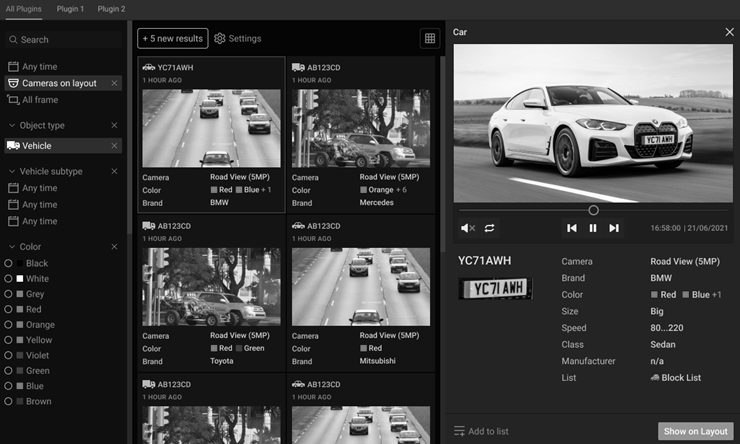
•Additional panels in the Advanced Object Search Dialog include the results panel (center) and the preview panel (right side).
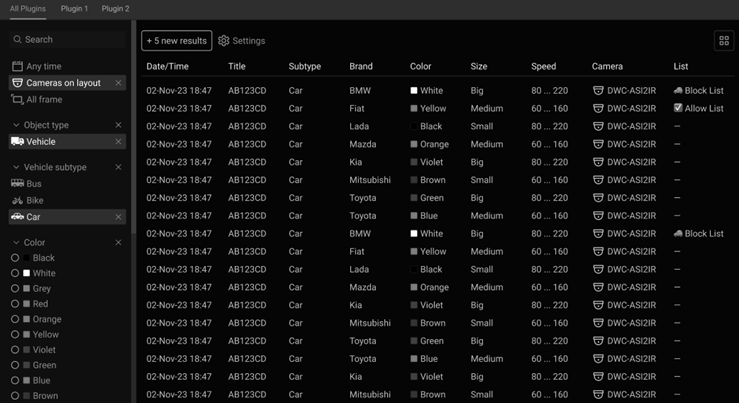
•The results presented in the center panel can be either a card view (image and metadata) or a table view that removes the images makes room for additional results.
•The preview panel includes available metadata provided by the plugin or integration service.
•Data and columns in the table view can be organized by using the Settings (gear) icon on the table view.
oSettings/Gear icon is only available when Object Type is selected
oChoices for Table view and Card view are independent (you may show “Color” in Card view, but not in Table)
oOnly shows Attributes that are available for the currently selected Object Type. When 2 object types share some attribute (i.e both Vehicle and Animal have “Color”) - the attribute will be visible for both.
•Hover over a card to display additional playback options (speed, jump points) that may be available.
•The preview panel will play the entire duration that the object is visible, including 4 seconds before and after the after object was detected.
•Left side panel can be re-sized to present an alternate view of the filter and tiles/
Using the Advanced Search:
1.Select the Objects Tab from within the Notification Panel.
2.Click on the Advanced button to open the Advanced Object Search dialog.
3.Select the active plug-in from header menu or select All Plugins – all plugins may not support all select object attributes.
4.Configure the search and filter parameters – results will update as parameters are adjusted.
Viewing Advanced Search Results:
1.Toggle the viewing option between Card (image based) and List (text based) formats.
2.Click on the Settings (gear icon) to adjust the fields shown in the results panel.
3.Select a card or list item to open the preview panel.
4. Click Show on Layout to return to the main view and align the playback with the search result.
Card View:
List View: