DW Spectrum User Manual
The Notification Panel is constructed of multiple tabs that group information into the following subjects:
•Notifications
•Motion
•Bookmarks
•Events
•Objects
Having these informational elements together enables efficient search, filter, and awareness to detected events and alerts without leaving playback mode, layout view, or needing to open another window.
The Notification Panel has three main sections:
•Tabs
•Filters
•Tiles.
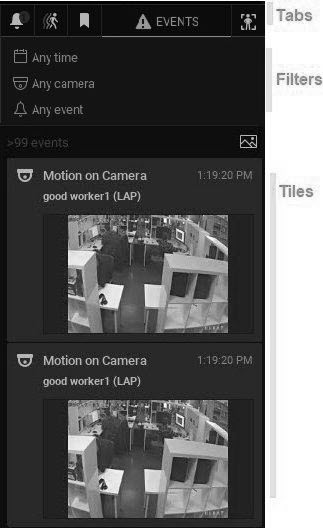
NOTE: The language displayed in the notification panel is set in the Configuring Users dialog.
Panel Behavior
The Notification Panel can be minimized/maximized by clicking on the arrow dividing the panel from the Viewing Grid.
Right-clicking on the background in any tab opens a generic context menu with these options:
•Open the Event Log
•Event Rules – see "Event Rules"
•Filter – see "Global Notifications"
Tab Behavior
Only one tab can be active at a time. Each tab can be searched and filtered independently by time period, camera, or other parameters as applicable to the given tab. Tab visibility depends on the state of the Site and user permissions. For example, the Motion tab is only available if the user has permission to view archive; the Objects tab is only visible if there is an analytical plugin on the Site that can detect objects, or if there is a database of detected objects from a previously attached plugin.
Filters
The filter section has a set of controls which will differ by tab. The state of filter controls is independent and persistent for each tab when configured in the Notification Panel. The filter options to choose from are – time, camera, area for motion detection, event type for events, object type, and area selector for objects. See "Searching and Filtering" for more details.
Click on a filter control to open a menu of options. When a filter is applied it will be highlighted. Some filters can also be added by selecting an item outside of the Notification Panel, such as clicking on a camera tile or selecting an area on a camera tile to filter motion detection. Click on the X to clear a filter.
•Time selector – The following options are available:
oAny time (default)
oLast day
oLast 7 days
oLast 30 days
NOTE: If a segment is selected on the Timeline, that segment becomes the time filter and it is applied to all tabs.
•Camera selector – The following options are available:
oAny camera (default)
oCurrent camera
oCameras on layout
oChoose cameras
•Area selector – Available to the Objects and Motion tabs only, with the prompt to "Select area on the video to filter results" if an area is not selected, or in filtered state "In selected area". In the Motion and Objects tab, selecting an area simultaneously selects the related camera.
•Event selector – Available for the Events tab only and has a two-level menu where the second level menu options are dependent on the top-level selection. Available events are:
oAny event
oMotion on Camera
oInput Signal on Camera
oSoft trigger
oPlugin Diagnostic Event
oGeneric Event
oAnalytics Event
oCamera Issues
oServer events
•Plugin selector – Only available while in the Objects tab. Its options depend entirely on the third-party products integrated with your DW Spectrum Site.
•Object selector – Only available while in the Objects tab. Its options depend entirely on the third-party products integrated with your DW Spectrum Site.
Event Counter
The event counter shows the number of events displayed in the tiles section. Click the image button ( ) to toggle thumbnails on and off, and in the Objects tab, you also have the option to click the information button (
 ) to toggle thumbnail information on and off.
Tile Behavior
Tiles display is always ordered with the most recent tile on top. If the source camera is not in the current layout, double-click to add it or open it in a new layout tab (Right-click). If the source camera is open in the active layout and SYNC mode is turned on, the archive playback for all items in the layout will be synchronized to that camera's Timeline. Clicking on a tile opens the related archive and moves the Timeline marker to the start of the Bookmark.
All tiles have one of four priority types, as indicated with color:
•Default
•Success
•Alert
•Critical
The Notifications and Event tabs handle tiles a little differently depending on the event type. A notification tile may open because of an event and then close, or may open and only close when the triggering event ends or the triggering Site state changes. However, Desktop Notifications have an option Forced Acknowledgment setting that prevents their closure until required actions are complete.
Search Field
When there is a search field, text input filters all results so only the tiles that meet the search criteria are displayed.
Responding to a Notification
While in the Notifications tab, hovering the cursor over a notification displays additional information according to the notification type.
Clicking or double-clicking on a notification displays additional information and triggers a corresponding action. For example, clicking on a "network issue on device notification" displays the last frame received from that device and opens the Device Settings dialog.
