DW Spectrum User Manual
Key Concepts:
•The objects tab is provides access to the configuration controls and display of object-based analytical searches.
•Options and controls available are dependent on the permissions granted to the current user and the abilities of the (analytical) plug in used.
•Visibility of the Objects tab depends on the existence and type of analytical service available to the device or Site, and the user's permission level.
•The object filter will refine to results using specific object types; with "Any" being the default for all fields.
•Selectable object types (e.g., car, human, bicycle, etc.) vary between plugins and the hosting, source device.
•Newly detected objects on the video source will appear hen an analytical plugin is enabled or the plugin settings are changed.
•Object detection can be applied to a video source that is being viewed, with or without recording being active.
•Detections not recorded to the archive will be lost after closing the Desktop Client.
•Previously detected objects stored in the archive will also appear as tiles.
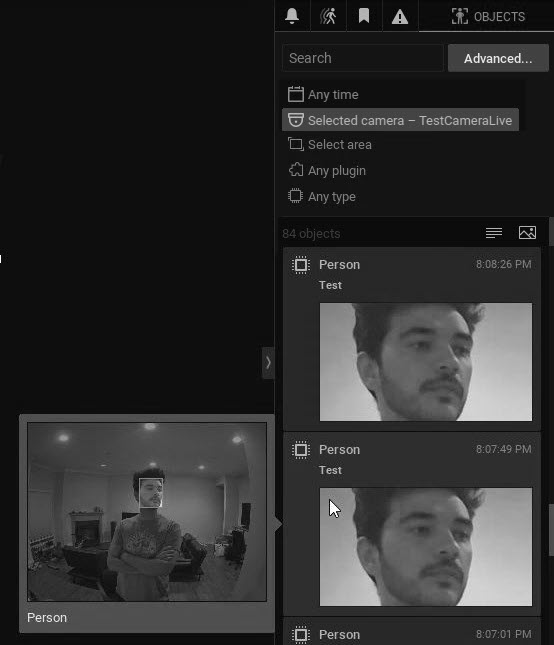
•Detected objects are outlined by bounding boxes that can be seen in the thumbnail that appears when hovering over the tile.
•The color used for bounding boxes can vary between object types and the analytical plugins used.
oSome analytical plugins allow for the customization of the bounding box color or other elements - plug in options vary by version and source device.
•The Search tool will search through object types and object text attributes (e.g., color, make, travel speed, etc.).
oSee "Searching and Filtering", "Analytics: Region of Interest", and Advanced Object Search for more details.
NOTE: The device filter in Advanced search inherits the device filter from the Objects tab and is limited to one device when using a Cross-Site Layouts.
General Object Search Example:
In the following example:
•The object "Person" was detected within the testcamera feed twice.
•All available parameters are set to "Any", including the region of interest (area) of the video.
•The detection bouncing box and event time is shown while the user hovers over the detection tile.
NOTE: Fields from an Analytics Event can be used to automatically fill in certain parameters when creating a HTTP(s) Request.
•Detected objects are indicated with yellow segments in the Timeline.

