DW Spectrum User Manual
When DW Spectrum Client is first launched, the Welcome Screen (shown below) automatically detects and displays the Sites in your local networks and Sites that have been recently accessed. Local Sites can be accessed with a username and password. If a User is logged into DW Cloud, Cloud Sites are also displayed.
Click on the "Log in to DW Cloud" tile on the welcome screen, or the Cloud icon in the application header, to open DW Cloud portal. See "Logging in to DW Cloud" for details.
NOTE: When accessing a Cloud connected Site with multiple servers, the Desktop Client attempts to connect to the Server with the best uplink. Alternatively, a specific Server can be chosen in the Site the Desktop Client will connect to, if unreachable, it attempts to connect to another Server.
The number of Site tiles displayed on the Welcome Screen is determined by your screen and window size.
Use the search bar above the tiles to search for a specific Site by certain attributes:
•Site name.
•Server name.
•IP address.
•Site Owner (cloud only).
•User's Email (cloud only).
Unavailable sites appear grayed out on the Welcome Screen and can be deleted. Hidden Sites are only visible when "Hidden" display mode is selected. The option to hide tiles becomes available when the Welcome Screen is excessively populated. Hiding Site tiles is not a security feature; it is intended solely for organizing the Welcome Screen.
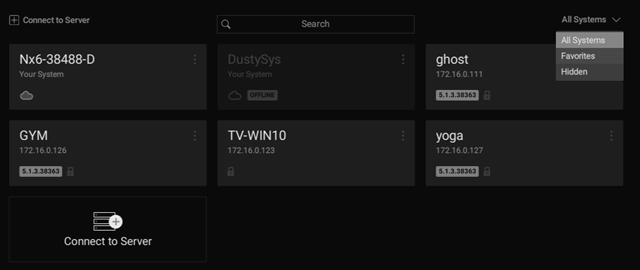
The Client can connect to Sites running different version of DW Spectrum. The product version is displayed in a yellow block within the Site tile if it is not the same version as the Client. If a Site is incompatible with the Client, the block will be red.
See "Launching DW Spectrum in Compatibility Mode" for information on establishing connections when the client and Site/servers have are not the same version.
NOTE: Compatible hardware supports safe mode booting where the hardware boots up in safe mode if an error or other unexpected event happened during a previous boot. In this case it is possible to connect to a server, but it is not possible to perform any configuration.
To Connect to a Site
Click on the tile for the desired Site. If it is compatible with the client a connection dialog will open.
1.Enter a login and password.
NOTE: Optionally, check Remember me so in the future clicking on the tile will connect directly to the Site using saved credentials.
2.Click Connect.
If there are 10 or more unsuccessful attempts to log in from a given IP address within 5 minutes, all log in attempts from that IP address will be denied for 1 minute.
Display Modes
The Welcome Screen has three display mode options which can be accessed in the upper-right corner.
•All Sites – displays all Sites on the network that have not yet been hidden or removed (default display mode).
•Favorites – displays all Sites added to the list of Favorites.
•Hidden – displays all Sites marked to be hidden from other display modes.
To Edit, Hide, or Favorite a Site Connection
For local Sites that are online, you can click on the tile to expand the connection details.
Also, context menu lets you edit the Site tile by clicking on the three dots in the upper-right corner.
•Hide – moves the Site tile from the default All Sites display mode to the Hidden display mode.
•Add to Favorites – moves the Site tile up in the list when in All Sites mode and adds the Site tile to the Favorites display mode for easy access.
•Delete – removes the Site completely (option only appears for offline and incompatible Sites). The tile won't appear on the Welcome Screen again unless the Site is online.
Working Offline
Even when you are not connected to a Site, the Welcome Screen main menu provides the following:
•Connect to Server – lets you connect to a specific Server using its IP address (see "Connecting to a Specific Server").
•Browse Local Files – use the Welcome Screen as a media player (see "Playing Local Video Files in DW Spectrum").
•New – launches a Welcome Screen in a new window.
•Start Screen Recording – toggles the recording of the entire screen (see "Screen Recording (Windows Only)").
•Local Settings – opens the Local Settings dialog where you can choose language, display time and other global setting (see "Customizing Look and Feel of DW Spectrum").
•About – displays important Site and network configuration information (see "Collecting Additional Information").
•User Manual – open the User Manual.
•Exit – closes the window (Alt+F4).
