DW Spectrum User Manual
DW Spectrum architectures consists of software defined Media Servers that manage video data and device connections and software clients that are used to configure the Media Servers, users, devices, and operational settings of the Video Management System.
This Desktop Client user manual makes reference the cloud client, the local, browser based Web Admin interface, and the mobile client when there is specifically relevancy or interactivity.
The following icons are used to illustrate the functional components and how they work together as a Site:


 Camera(s)


•One or more Media Servers,
•All devices and streams connected to the server(s),
•Mass storage available to the server(s) (physically attached and/or network addressable), and
•Clients in use (Desktop, Mobile, the Web Admin interface, and/or the Cloud Portal).
The maximum recommended single Site size is 10 servers with 256 video streams per server, and 2,000 TCP connections. Sites can be connected together as an Organization to endlessly expand the total size. Performance will vary significantly depending on specific environmental factors and the equipment in use.
NOTE: It may be possible to configure lower streaming limits or deploy a reduced feature set to meet operational objectives.
Please consult your sales or support team for assistance when a design or installation approaches the maximum recommended Site size.
A Site can have just one server |
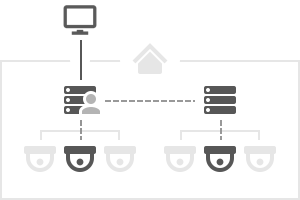
A Site can have several servers |
A server by itself is a Site |
|
|
|
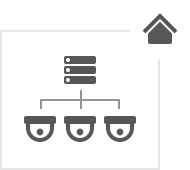
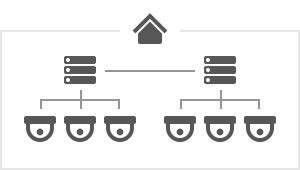
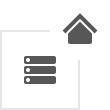
If there is only one server, there is little difference between the Server and the Site, and they can be considered equivalent. However, with more servers in a Site the differences will become significant.
All Servers in a Site are equal and they share information about all Cameras, Users, and settings in the Site. Video archives are not shared as recorded video is stored only on the Server connected to the video source.
Therefore, when one server in the Site with a new one (e.g., for an update or repair), all Site settings will be retained – but the video archive recorded on the old server is not and must be moved to the new server..
Every site contains a user database that associates identity information (Name, Email, User Type) with specific Permissions. Each user is created in or added to the Site with a particular User Type (Cloud, Local, LDAP, or Temporary) that cannot be changed once set. A user must be deleted and recreated to change the User Type.
User Management can be done at the User level or by placing Users into Groups with configurable Permissions and Notification settings. Similar to the User Type, the Group Type (Built-In, Custom, LDAP) defines how the Group can be configured and the User Types that can be members of the Group. Groups can be nested to inherit Permissions.
A Site Administrator is defined during setup. This Admin User has full control over the Site and all other Users. There can be only two Administrator accounts on any Site; one is a Local User and the other is an optional Cloud User available for Cloud Connected Sites. Administrators add or create Power Users to perform limited Site and User Management tasks. All other Users are Viewers with a configurable set of Permissions that include access video streams, managing bookmarks, export from the Archive, interacting with Site monitoring tools.
Users can change Camera settings if granted the "Edit Settings" permission (see Permissions Management).
Cloud Users are unique as their core attributes (Email and password) are stored in the DW Cloud. Cloud Users are granted access to or removed from Sites where the other User Types are added to or deleted from a SIte.
Removing a Cloud User from a Site does not delete the Cloud User – deleting a non-Cloud User from a Site completely removes the User and their Audit Trail of User Actions.
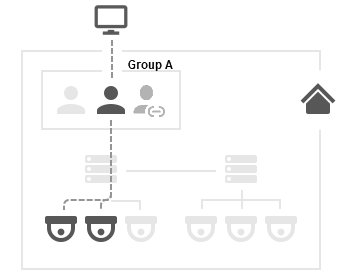
Administrator has full access to all servers and all devices |
Users in a group have a common permission to servers and devices. |
|
|
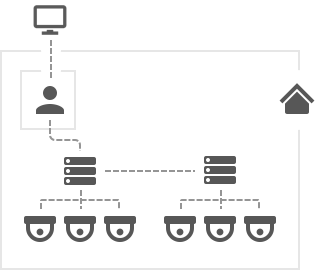
The term "User" can mean the same thing as the term account, or it can refer to a physical person. A physical person can have multiple accounts and many physical people can share an account. For example, a person has different accounts to access different Sites or multiple people can share a single Admin User account.
See "Users and Groups" for details.
"Server” in this manual can refer to either the server application (called the Media Server) or the computer on which the Media Server application is installed. The maximum recommended number of video sources per server is 256.
Servers can:
1.Receive video streams from cameras.
2.Manage camera settings.
3.Record video from cameras to internal or external storage.
4.Process and analyze video – for example, detect motion.
5.Manage User database and access levels.
6.Track certain events and react to them.
7.Work with different hardware devices – for example, NVRs, I/O modules, or door locks.
Client applications can connect to servers, and can show live or recorded video from cameras in the Site. Clients are also used to manage the Site, the server(s), and device settings. A client can connect to different servers, but only to one at a time.
Any number of clients can be connected to one server at any time. If the client is connected to a single server in the Site, it has access to the entire Site through this server, including settings applied to others servers and device in the Site.
The following Сlient applications allow operators to access and manage their Site(s) with an intuitive GUI:
•DW Spectrum Desktop Client – The most powerful Client application. Available on Windows, MacOS and Ubuntu Linux.
oConnect to any server.
oView live streams.
oPlayback recorded video and local video files.
oPlayback up to 64 videos simultaneously.
oAdvanced camera controls – PTZ, 2-way-audio, I/O ports, etc...
oBuilt-in web browser.
oManage users, cameras, Site, and Server settings.
oView event logs and User behavior logs.
•DW Spectrum Mobile Client – Available on Android and iOS.
oConnect to any server.
oView live streams.
oPlayback recorded videos.
oCamera controls – PTZ, 2-way-audio.
oSmart Search.
oPush Notifications.
•DW Spectrum Server Web Admin– Also called "Web Admin". Can be opened in any modern web browser.
oServer specific connection.
oView live streams.
oPlayback recorded videos.
oAccess Health Monitoring.
oManage Users, Cameras, Site, and Server settings (see Opening the Web Admin for details).
An important part of DW Spectrum is DW Cloud. It is a cloud service hosted on the Internet and extends functionality of DW Spectrum Sites.
In addition to the default functionality, DW Cloud also gives the ability to:
1.Log in to multiple Sites with a single account.
2.Connect to servers through the internet even though they don’t have an external IP address.
3.Add users to your Sites via an Email invite.
To access Cloud features, a Site must be connected to the cloud – which makes it a Cloud Site (as opposed to a Local Site).
Create a Cloud account to interact with DW Cloud. You can do the following with a Cloud account:
1.Log in to Cloud Sites in the same way as with a regular User account.
2.Log in to Cloud Sites from desktop and mobile clients.
4.Connect your Sites to DW Cloud.
5.Restore a password using your Email address.
Users with Cloud accounts are also referred to as Cloud Users. Users with regular accounts or local accounts are referred to as Local Users.
Local accounts belong to the Site, and cannot be moved elsewhere or used in the different services.
Cloud accounts do not belong to any Site, so Site Administrators are not able to create a new account – they can just add an account to their Site, and place the user in a permission group.
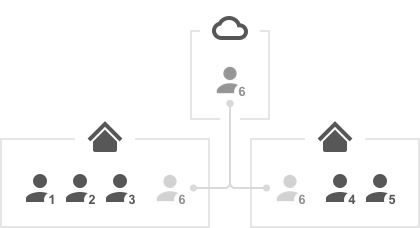
In the diagram below, users 1–5 are Local User accounts – they exist only in Site databases and are managed by Site Administrators. User 6 is a Cloud User – the account is the same for both Sites, and is managed on the Cloud Portal by the cloud account Owner. The Site database has information about this account but cannot manage it.
To connect a Site to DW Cloud, you must log in to the Site using the administrator account. In the DW Cloud tab of the Site Administration dialog, specify the Cloud account that the Site will be associated with. This account will also receive administrator access permissions and be displayed in the interface as the Site administrator.
After a Site is connected to DW Cloud, it has access to all Cloud features, and can be disconnected from DW Cloud at any time. After being disconnected, a Site becomes a local Site again. The Cloud Owner and all other Cloud users will be deleted, but other settings and video archive will not be affected.
Benefits to using the Cloud Portal:
1.Cloud accounts can be created on the Cloud Portal – a web service which is independent of any Site and available to everybody.
2.On the Cloud Portal you can see all your Cloud Sites, view video, and edit some of the settings.
3.You can log in to all Sites associated with your Cloud account from the client Welcome Screens.
